Quote & Cut Form Styling
Choose the frontend layout, colour palette, calculation effects and typography from one dedicated Styles page without editing plugin templates or writing custom CSS.
One Styles Page
The Styles page groups every supported visual control into clear sections. Update one area at a time, save the changes and review the result through the built-in preview before testing the live customer form.
Full Styling Walkthrough
Follow the complete styling workflow from choosing a frontend layout and multi-part job image to configuring the colour palette, calculation effect, typography and final frontend test.
The Styles page keeps the layout, WooCommerce display image, colours, preview effects and typography together in one organised WordPress screen.
See how each backend setting changes the customer-facing quotation experience, then verify the final design with a real DXF upload and price calculation.
Step 01
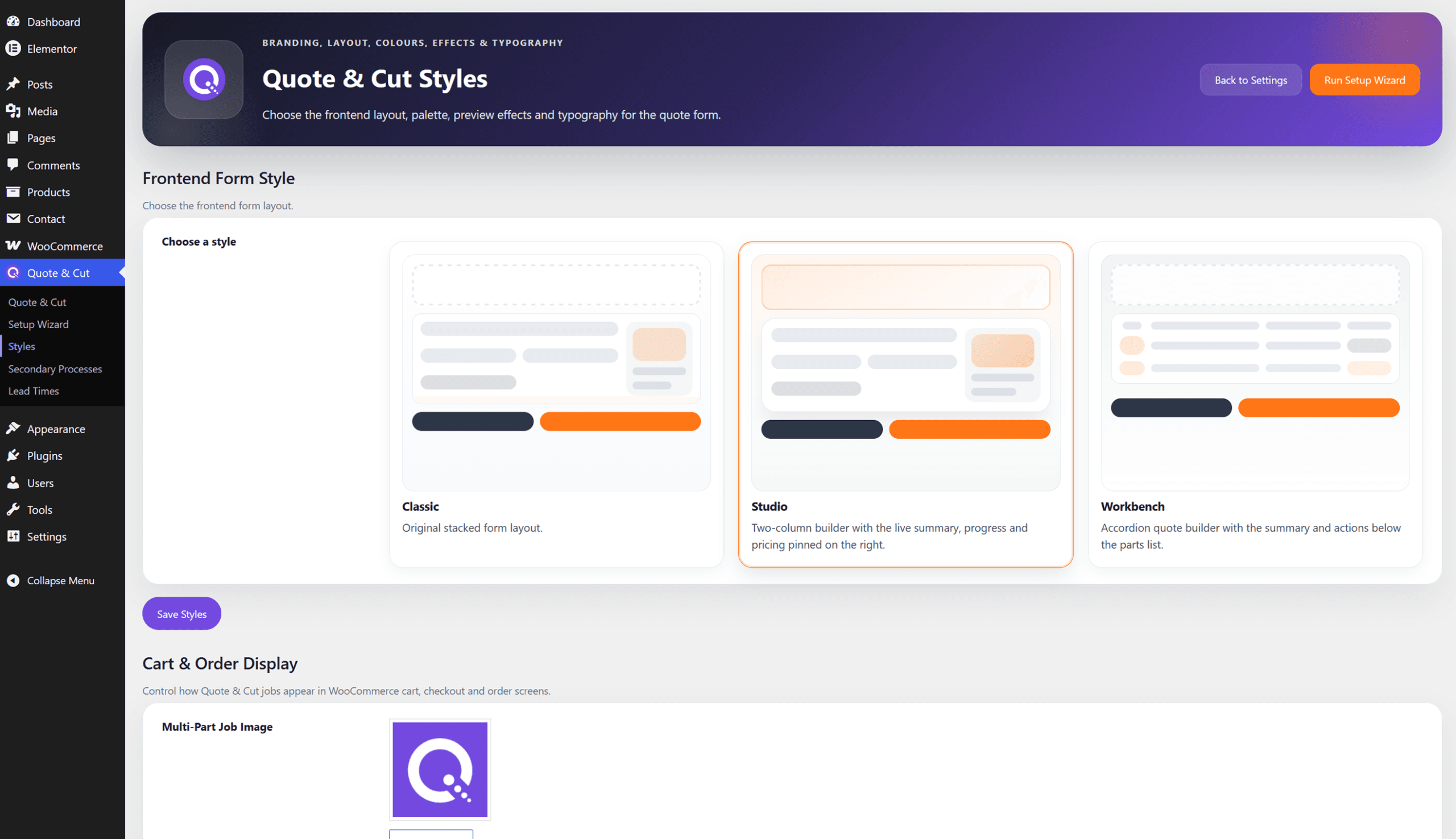
From the WordPress dashboard, open Quote & Cut and select Styles. This dedicated page controls the frontend layout, WooCommerce multi-part image, colour palette, preview effects and typography.
Step 02
Frontend Form Style changes the overall quote-building layout. Classic uses the original stacked form, Studio uses a two-column builder with the live summary and pricing pinned on the right, and Workbench uses an accordion builder with the summary and actions below the parts list.
Step 03
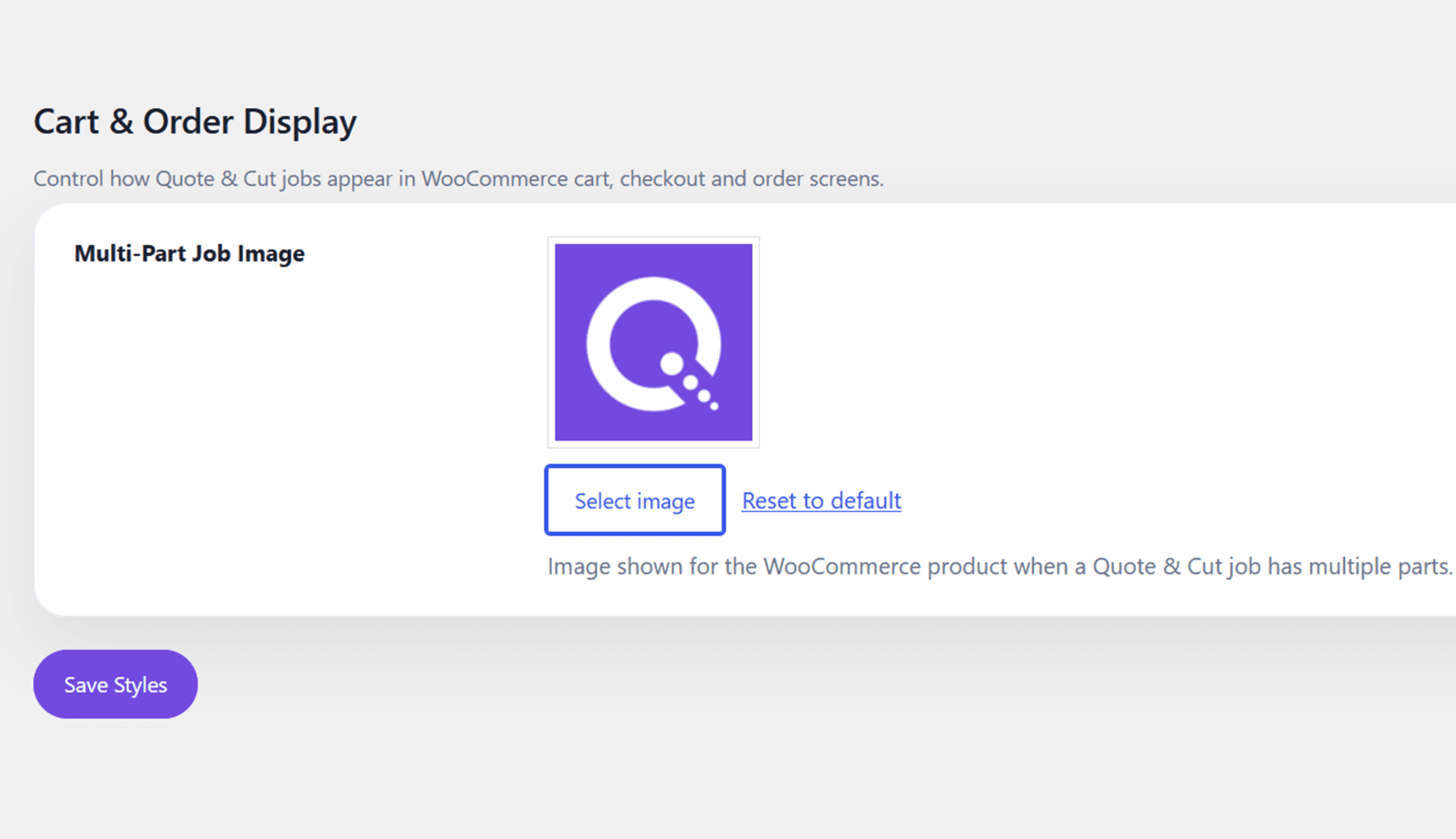
Cart & Order Display controls the WooCommerce product image used when a Quote & Cut job contains multiple parts. Select an image from the WordPress Media Library or restore the bundled default image.
Step 04
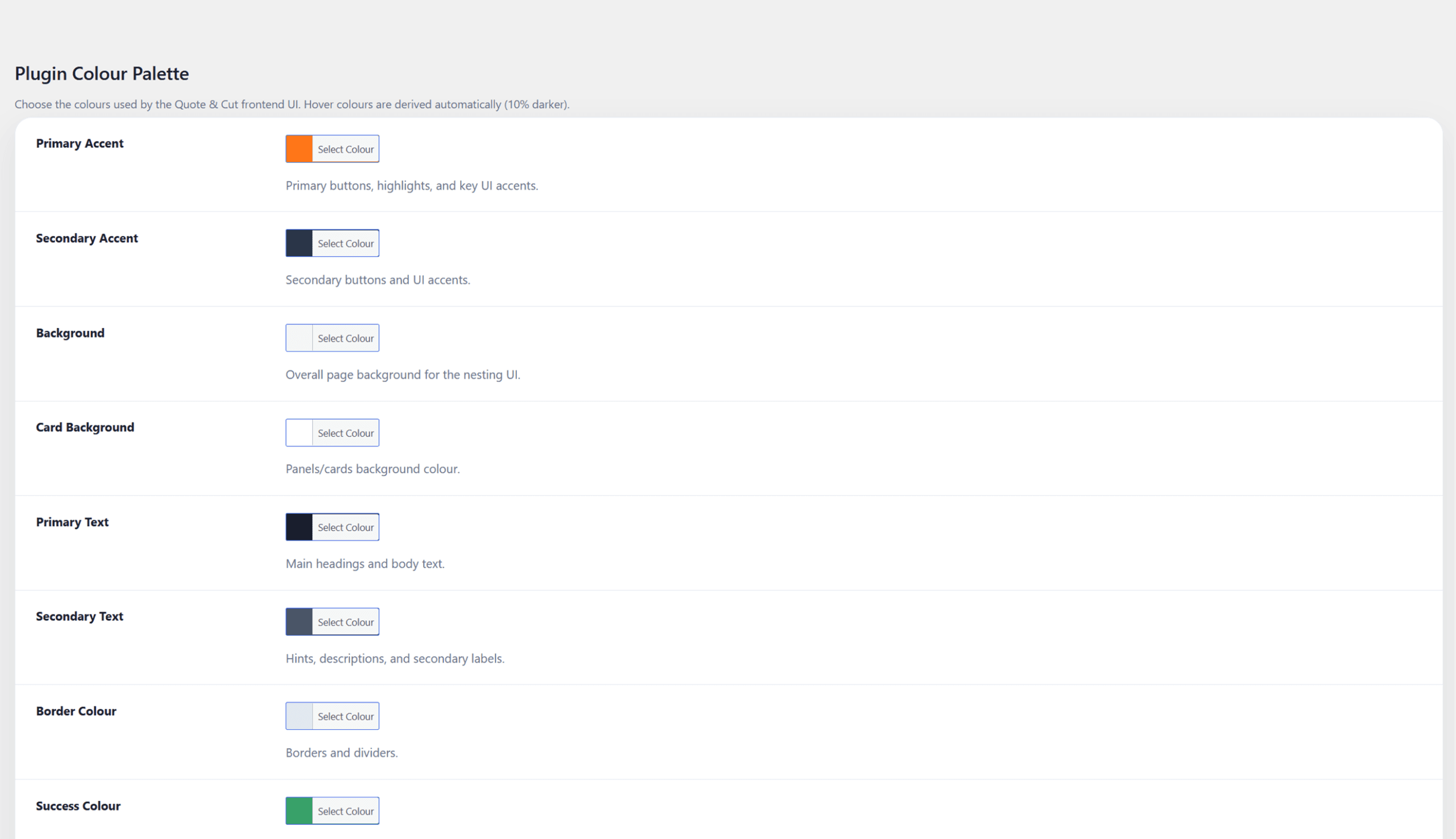
Use the Plugin Colour Palette to match the quote interface to your website. The available controls cover primary and secondary accents, the main background, card background, primary and secondary text, borders, success states, danger states and the preview-effect colour.
Step 05
Part Preview Effects controls the animation displayed over each component while Quote & Cut is calculating the price. Choose the effect that best suits the style of the website, or switch the animation off completely.
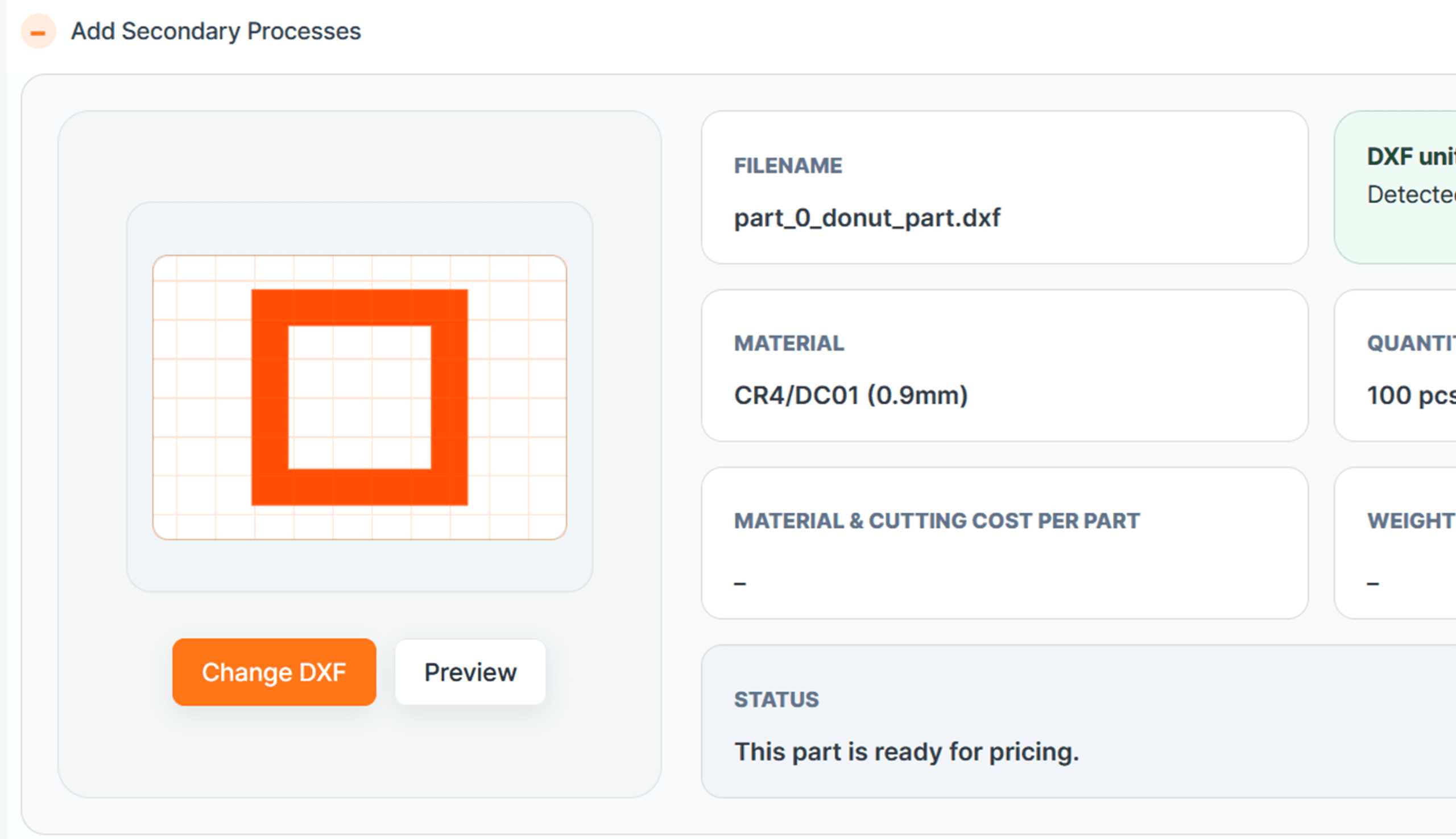
Step 06
Typography can be assigned independently to the main types of content used across the quote form. Each field can use a selected font or remain on Default so the active form style uses its original plugin font.
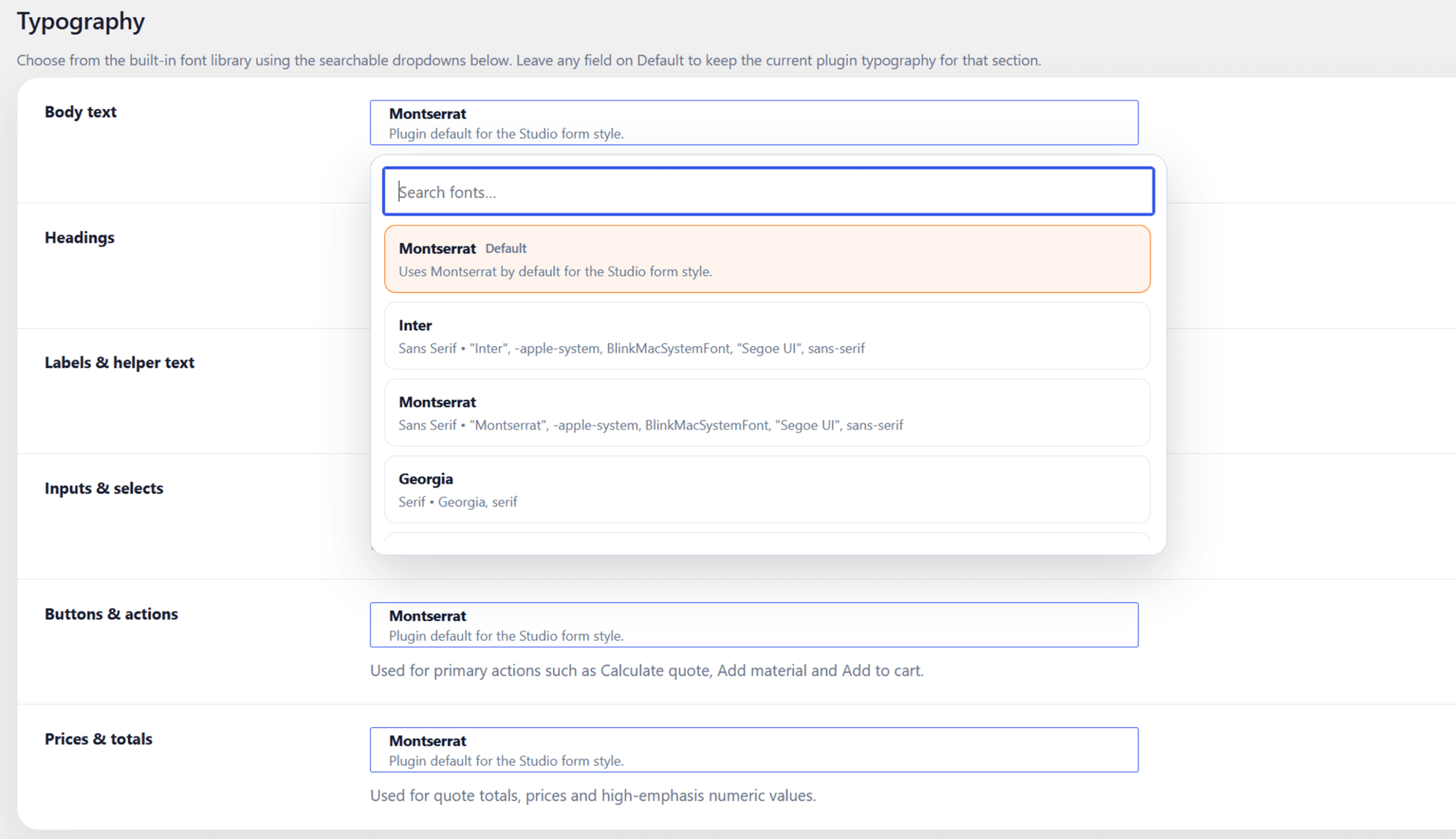
Step 07
The Live palette & typography preview updates as colours and fonts change. Save each section, refresh the frontend quote page and complete a real DXF test to check selected controls, calculation effects, prices and status messages.
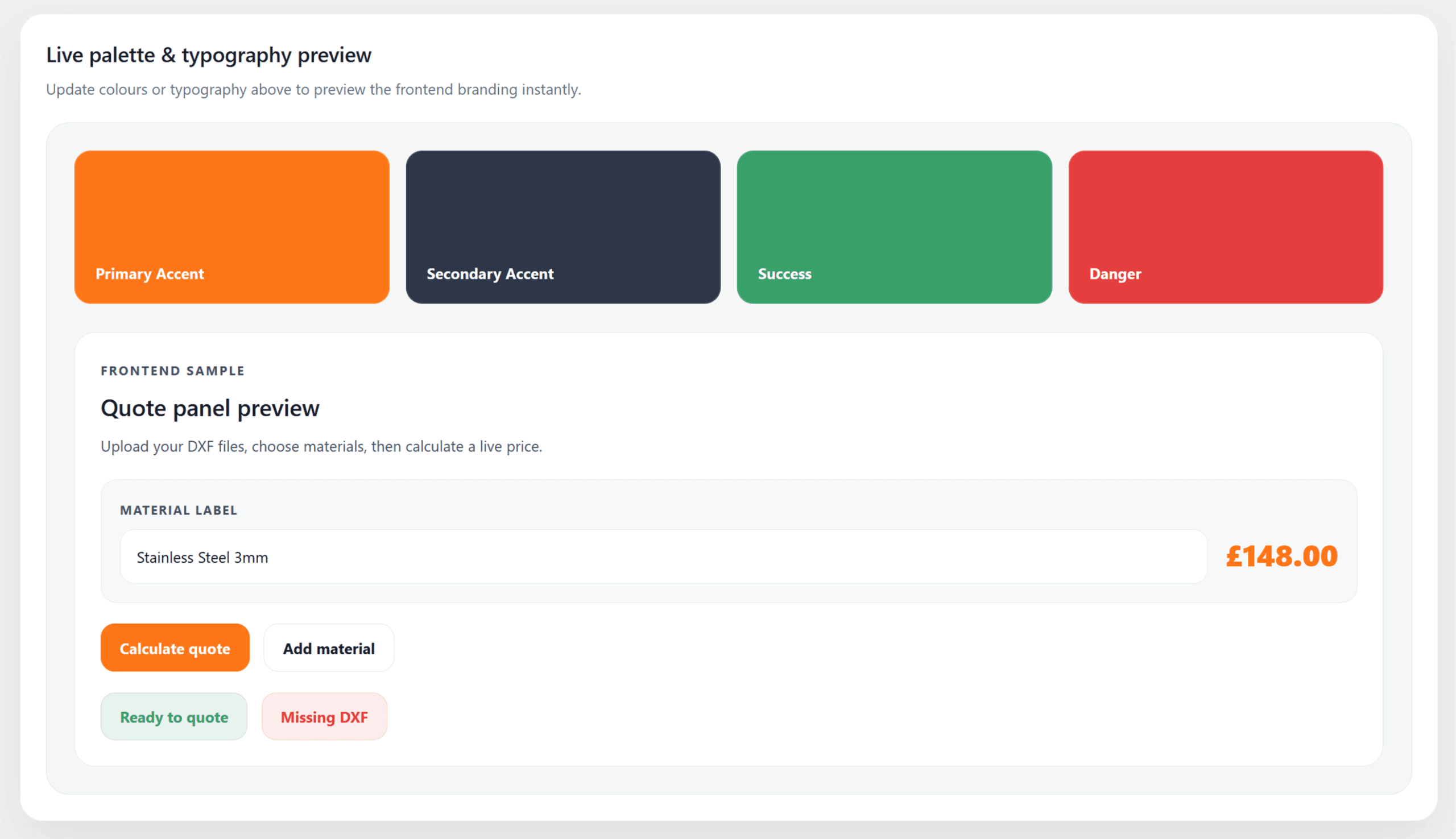
The Visual Difference
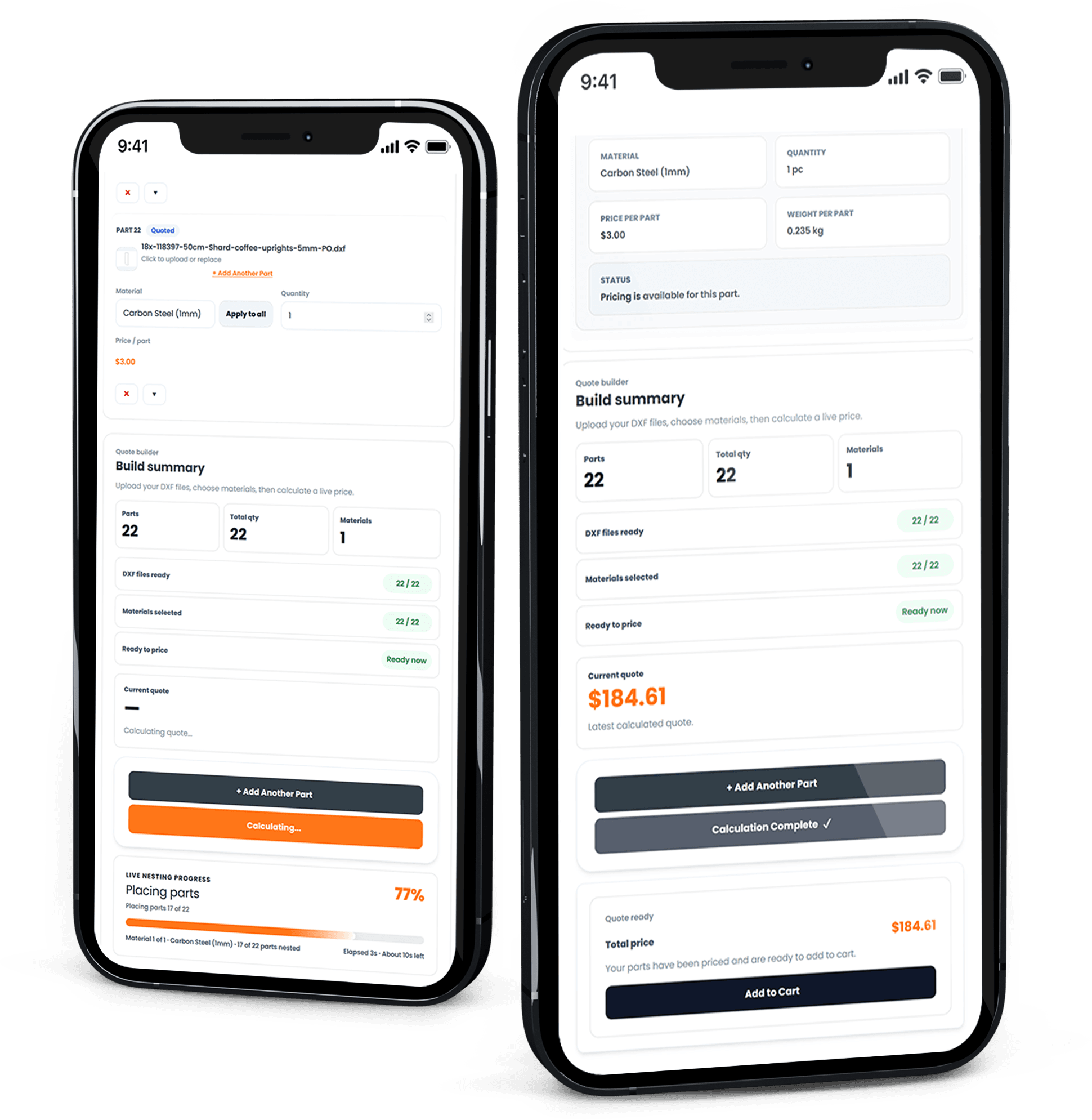
Quote & Cut keeps the quotation workflow intact while giving the interface a layout, palette and typography that feel consistent with the rest of the website.
Make the Quote Form Part of Your Brand
Install Quote & Cut, choose the frontend layout and apply your own colours, typography and calculation effect through the built-in Styles page.
Discount Applied Successfully!
Your savings have been added to the cart.
